SSH is the name of a protocol, the abreviation stands for Secure Socket Shell.
Basically this is a shell that wraps all your communications into an encrypted data stream. You setup an SSH connection. Then your SSH client and the SSH server set up a strongly encrpyted connection. Then you redirect TCP/IP services throught this connection, no matter if this is remote-control of a whole machine or e-mail.
There are several places where you can get SSH. Free versions are available for Linux and Windows. Mac users can buy SSH.
Most of us are using TeraTerm Pro with the TTSSH plugin. Use http://hp.vector.co.jp/authors/VA002416/teraterm.html and http://www.zip.com.au/~roca/ttssh.html to get the software.
That's simple enought. You just have to set a password and let the PGP Forwarding Server deliver mail for you locally. Because SSH encrypts the whole traffic for you anyway, you can even disable encryption.
Here is a sample command sequence to achive this:
   set forward off
   set password abcdefg
   set encryption off
Important: you MUST send this commands in an encrypted and signed e-mail. If the mail is not signed, the command processor won't know that the mail is from you. If the mail is not encrypted then anybody could see your new password. Bad, bad, bad ...
I've prepared some pictures on this, so this is hopefully easy enought. But before you start, you must have set a password. Did you ever use the set password command? If not, then do so first!
Then start TTSSH.EXE (not TTERMPRO.EXE). The connect screen should look like this:
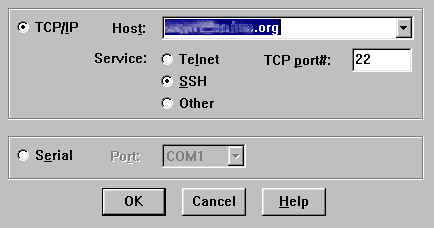
Press OK.
Now if you connect the very first time to the server you should see this dialog:
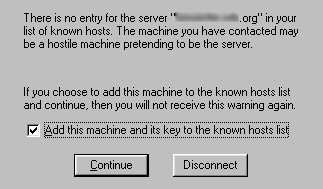
If you see this on subsequent connections you know that someone is forging to be you. In this case, don't connect and don't use the service until you know what is going on.
However, normally everything is ok and you see immediately the login prompt:
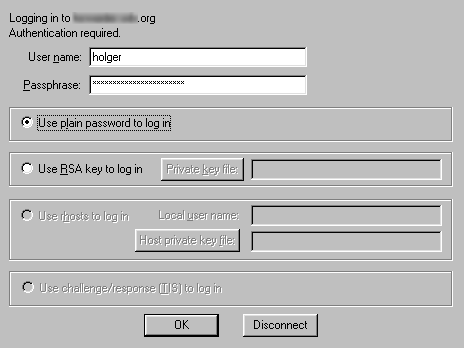
Althought the option says "plain password" your password is not transferred in plain text over the wire.
Finally, you are connected. The PGP Forwarding Server will display this message to you:
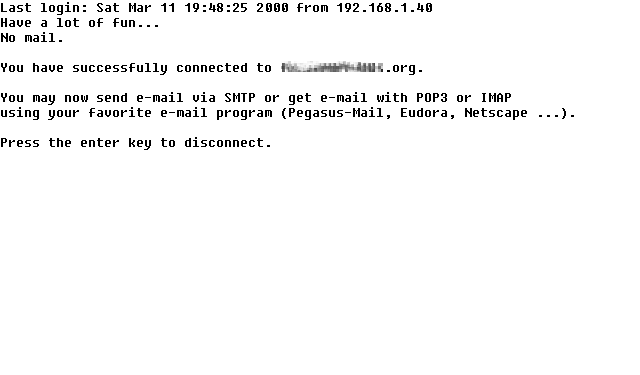
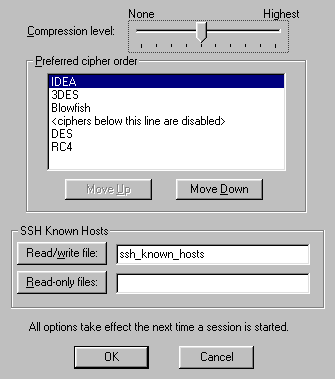
However, you only can transfer e-mail over SSH once you've configured TTSSH.EXE correctly. First, you should increase the compression somewhat. Do this with via the Menu (Setup -> SSH ...):
Now, you have to setup the forwarding. This can be done via Setup -> SSH Forwarding:
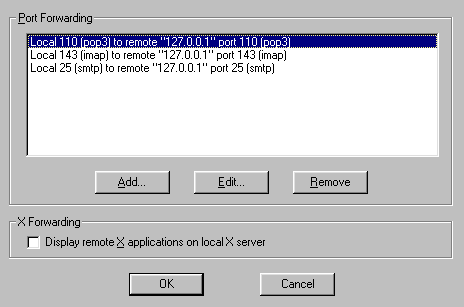
This screen means that any program that contacts the pop3 service on your computer will be re-routed to the pop3 service on the remote computer. The same is true for the imap and smtp service.
One short note: quit and re-start TTSSH.EXE after you've set those options. The forwardings will only be set while connecting a computer.
Once this is set, you can continue and change your E-Mail program. Basically, you can use any e-mail program. Just do yourself a favor and don't use Outlook or Outlook Express. Those programs are inherently insecure, one an read every week a new security problem with those programs..
Here, we go into Pegasus Mail 3.12b and select Tools -> Internet options... in the menu. The we just enter "localhost" for the sending and receiving computer:
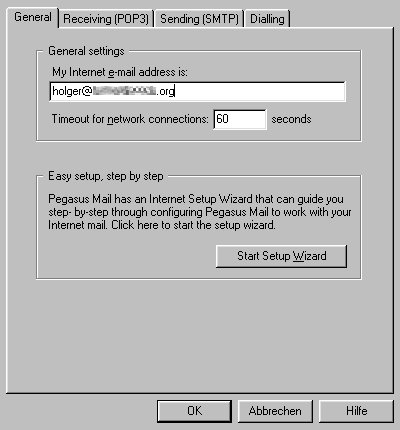
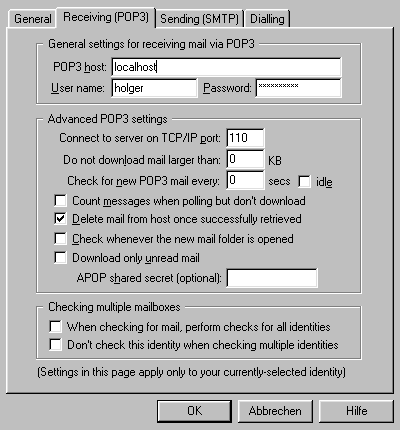
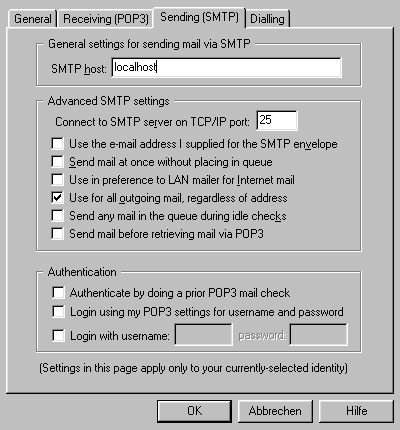
That's it. You as soon as you write an e-mail, the e-mail will go via SSH encrypted to the PGP Forwarding Server. This server will take the e-mail from you and send it out normally, unencrypted. However, you can still use PGP on top of it or the help for the forwardhub command line interface.